Getting Started with Luma
Public Preview –– open to all accounts
Luma is currently available in public preview, allowing you a first opportunity to interact with the agent. We are continuing to expand Luma’s capabilities and put polishing touches on the chat experience.
Luma is available to all Decile customers and can be enabled directly inside your Decile account. Follow the steps below to opt in and start using Luma for ecommerce analysis and insights.
1. Enable Luma
When Luma becomes available in your account, you’ll see an invitation in the left navigation panel.

- Click Try now on the Luma card.
- A brief modal will appear with information about Luma and the public preview.
- Click Continue to enable Luma and finish onboarding.
Luma access is applied instantly — there is nothing else you need to install or configure. Every user in your brand will now have access to Luma's insights!
💡 Looking to add more users? See Invite and Manage Brand Users
If you prefer not to participate, you can close the modal or select Not now. You can return and enable Luma at any time.
2. Open Luma Inside Decile
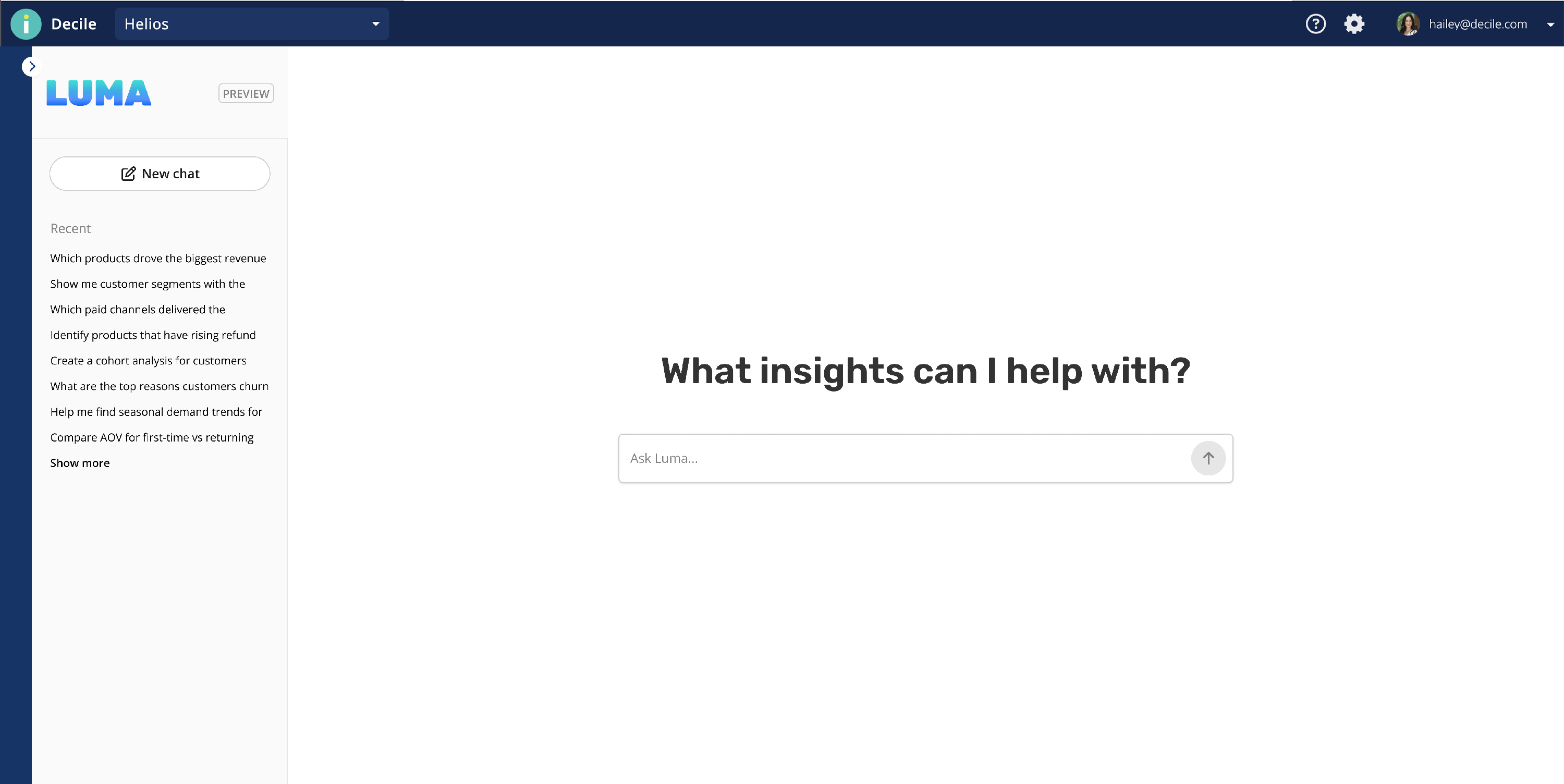
Once enabled, Luma is available at the bottom of the left navigation menu. Click the Luma icon to open the home screen.
The Luma home screen includes:
- A welcome message
- A prompt box to begin asking questions
- Your chat history
3. Ask Your First Question
You can start a conversation by typing any natural language question into the prompt box.
Examples:
- “What are my top acquisition products?”
- “How many customers have made 2 or more purchases in the last year but are not active subscribers?”
- “Provide an executive summary of our BFCM performance”
You don’t need to know SQL or the underlying field names — simply ask what you want to learn.
4. Understand Your Results
Luma will return your answer in the format most helpful for your question, along with transparent thinking steps to support the logic used to form the answer.
This may include:
- Tables or charts
- Written summaries and takeaways
- Strategic implications and recommended actions
If you want a specific type of output, you can request it in your prompt (e.g., “Show me a chart” or “List the top 5 products only”).
5. Navigate Chats
You can begin a new chat at any time by selecting New chat.
Once you begin chatting with Luma, you will see a list of recent conversations that you can reopen. Each conversation includes its own prompts, analysis, and outputs.
Follow-up questions are often the best way to deepen an analysis. For example:
“Can you break this down by new vs. returning customers?”
“Show me this trend by month.”
“Give me the top 3 takeaways.”
Luma fully supports back-and-forth conversation. At this time, Luma does not have visibility across chats. We recommend sticking to one chat thread as you converse about a single theme, topic, or analysis, and start a new chat when you're ready to dive in to something else.
6. Tips for Better Results
Luma will make a best effort to interpret your request as accurately as possible. You’ll get the strongest insights when you:
- Include any useful context for why you're asking a question (e.g. "We're currently planning to launch a loyalty program and are trying to decide on qualification criteria...")
- Add date ranges or segments when relevant
- Ask for a specific view if you want a chart or summary (e.g. "Show me a trend..." or "Provide an executive summary..."
- Use follow-up questions instead of starting over
Luma is designed to handle clarifying questions, additional filters, or different timeframes naturally as part of the same conversation.
7. Troubleshooting
If a result looks unclear:
- Ask Luma to restate or simplify the answer, or define or explain a definition
- Check the thinking steps to review how Luma produced a result, and adjust if necessary
- Add filters, dates, or segmentation if you need more context
If something appears incorrect or unexpected, use the feedback buttons on Luma's response. We love feedback — it helps improve the Luma experience for everyone.