Install the Decile MCP in Claude
Claude Connector Set Up
Follow the steps below to connect Decile in Claude.
On a Team Plan
Admins, enable the connector for your team:
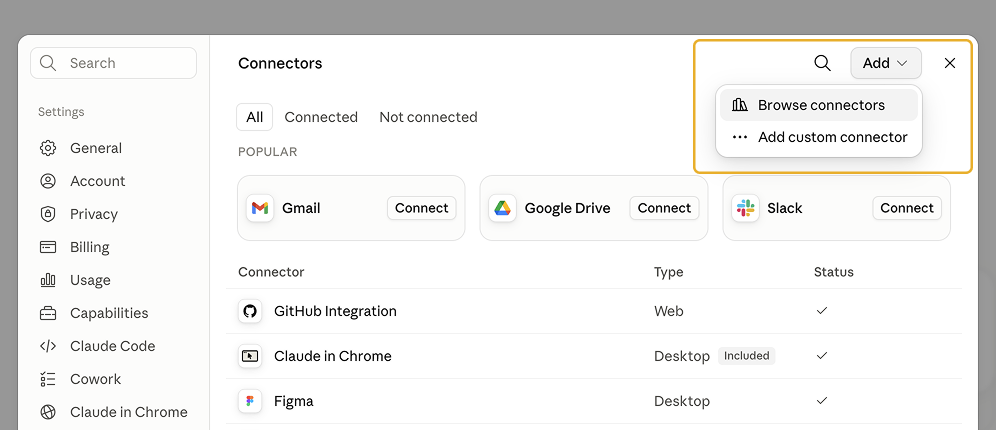
- Find the Decile connector in the Claude Connectors Directory under Customize > Connectors > Add > Browse Connectors.
- Press Add to your team
Once added, each team member connects individually:
-
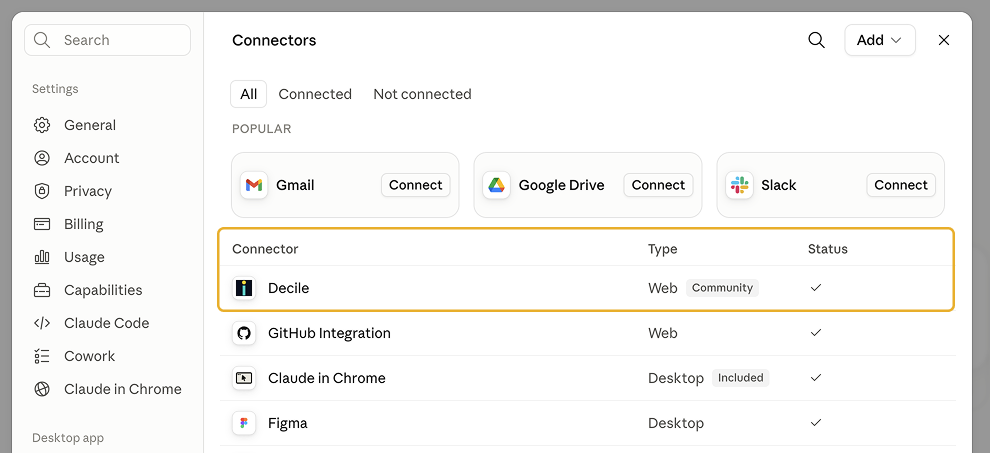
Find the Decile connector in the Claude Connectors Directory under Customize > Connectors

- Press Connect
-
You will be redirected to the Decile login screen.
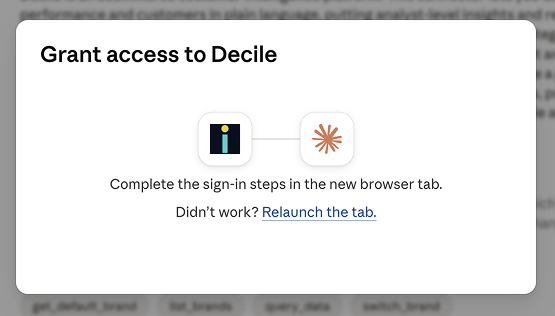
-
Log in using your Decile log in credentials.
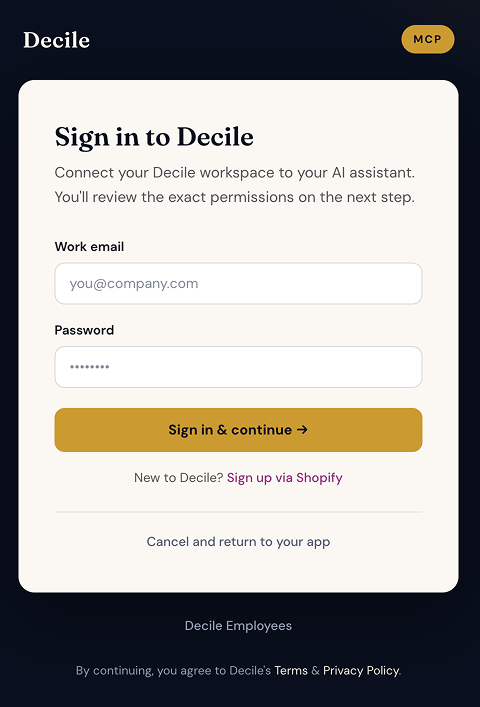
Note: If you have access to multiple brands in Decile, please select the brand you wish to connect. See Limitations below for more information.
-
After logging in, you will see a confirmation screen and be redirected back to Claude. The Decile Connector is now active. Test it out >
On a Personal Plan
-
Navigate to the Claude Connectors Directory under Customize > Connectors > Browse Connectors
-
Find the Decile connector
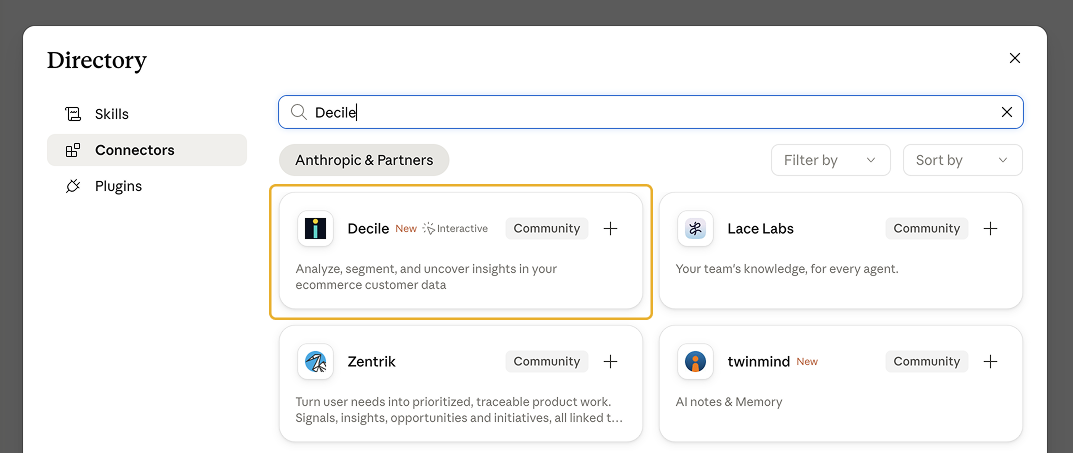
-
Press Connect
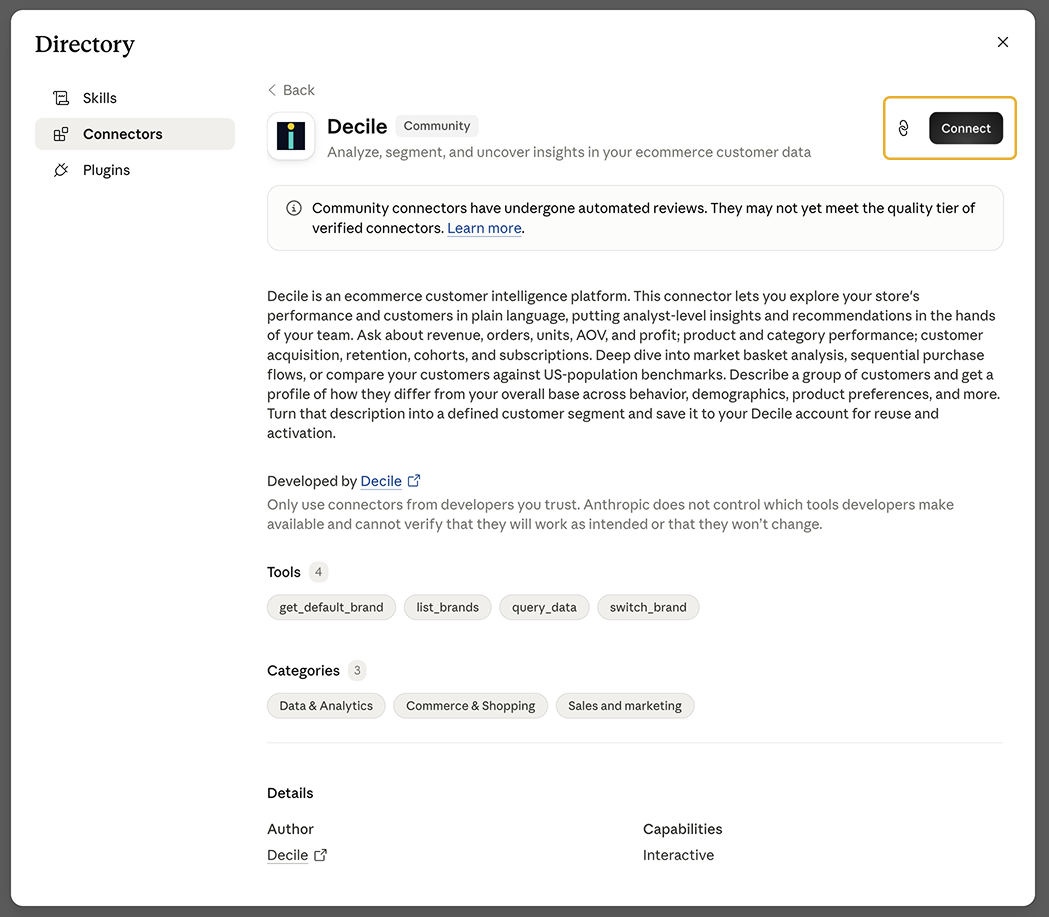
-
You will be redirected to the Decile login screen.
-
Log in using your Decile log in credentials and approve permissions.
Note: If you have access to multiple brands in Decile, please select the brand you wish to connect. See Limitations below for more information.
-
After logging in, you will see a confirmation screen and be redirected back to Claude. The Decile Connector is now active.
Test it out
- In a new Chat or Cowork session, ask Claude a question about your brand or customers, for example "How many orders did we have in the last 30 days?"
-
You will be prompted to select tool permissions. The MCP requires these tools to run, but you can select how often Claude asks before running a tool.
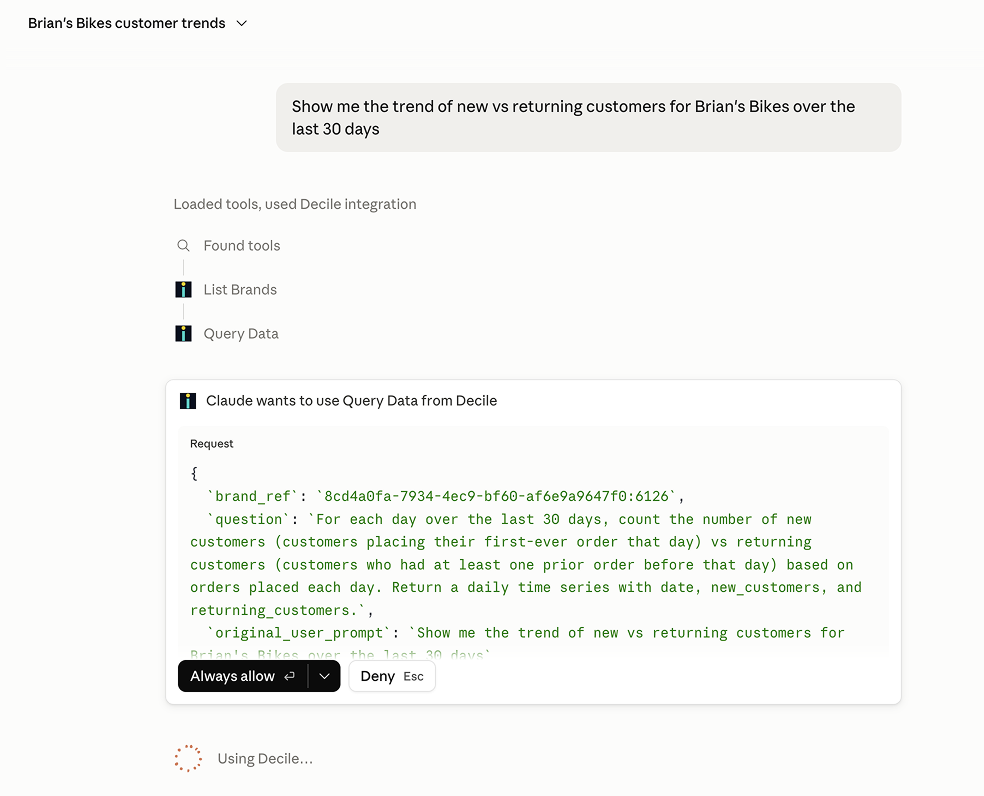
-
When Claude is done, you should see that Decile tools were used to answer your prompt!
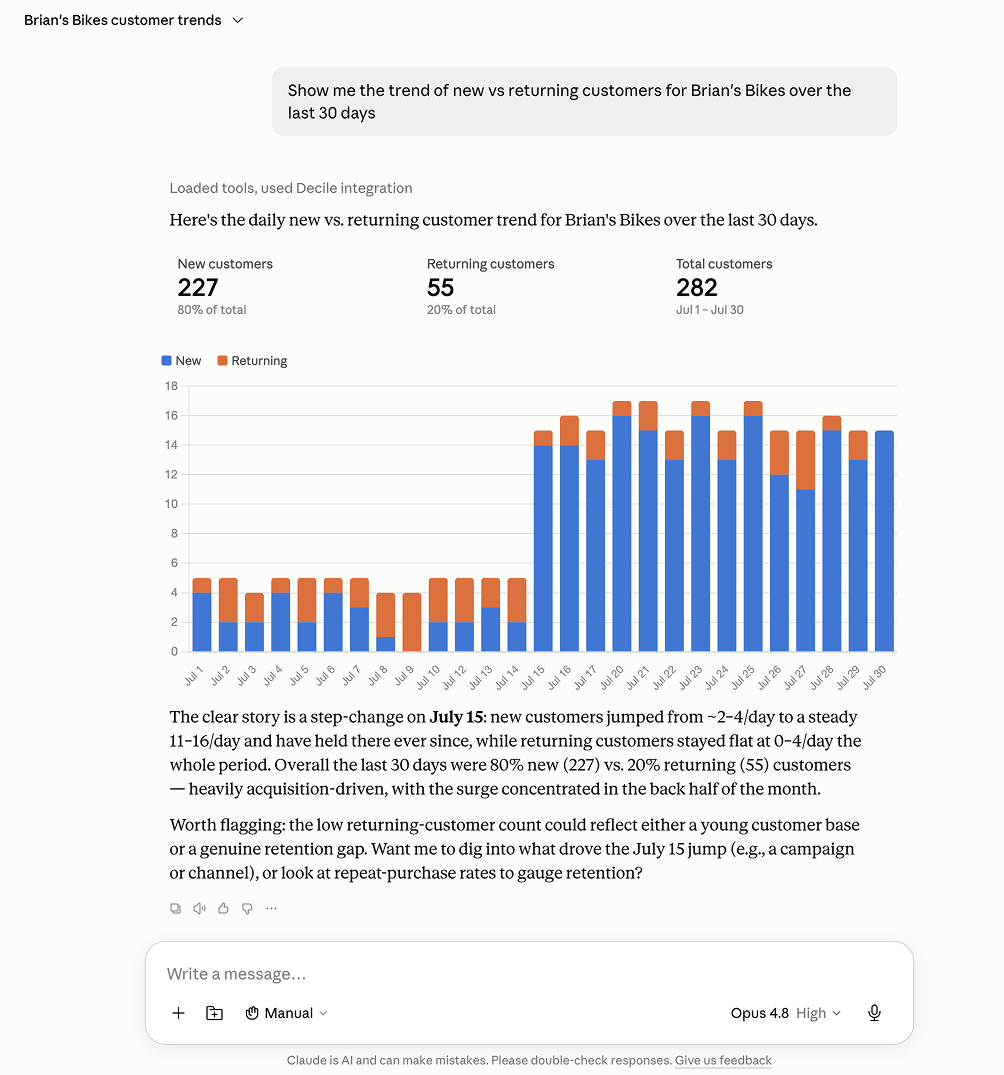
Limitations
The Decile connector can only be connected to a single brand at a time.
For brands connected with a single Decile account/email logins:
- To switch brands, simply tell Claude you'd like to switch Decile brands and follow the prompts that follow. We recommend starting a fresh Chat or Cowork session if the current session contains results from the previously connected brand.
For brands connected to different Decile accounts/email logins:
-
Disconnect the Decile connector in Claude by going to Customize > Connectors > Decile and press Disconnect
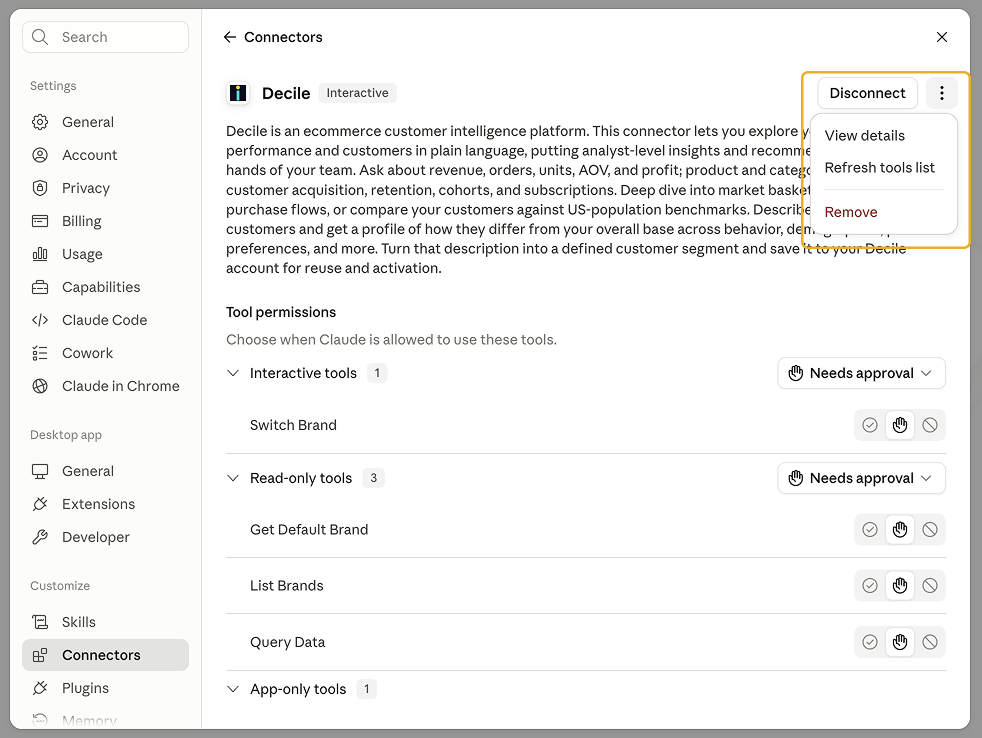
- Reconnect the Decile connector in Claude, but on the Decile login screen enter the new login credentials and select the desired brand associated with that login. You may need to "Sign out" on this screen to change your current email.
